
Open Palette Visualizer in your browser to preview any color palette live on editorial landing pages, SaaS dashboards, packaging, patterns, and vector illustrations with instant role shuffling. Everything runs locally on your device with instant sync across the shared Active Palette bar.
Inspect your Active Palette across 10 studio boards
Open Palette Visualizer with any Active Palette—or use the category tabs (All, Web & UI, Branding, Typography, Patterns, Illustrations) to focus on your project’s medium.
Switch the stage backdrop between Light, Dark, and Tinted to judge how light and dark cards sit on different presentations.
Full-screen zoom: Click any of the 10 gallery boards to open the high-resolution Lightbox and step through scenes with keyboard arrows.
Click Shuffle or Flip in the Active Palette bar
Often you already have the right colors—just assigned to the wrong roles. Click Shuffle in the top Paintbox bar to permute which swatch drives backgrounds, surfaces, headlines, and buttons, or click Flip to invert light and dark polarity.
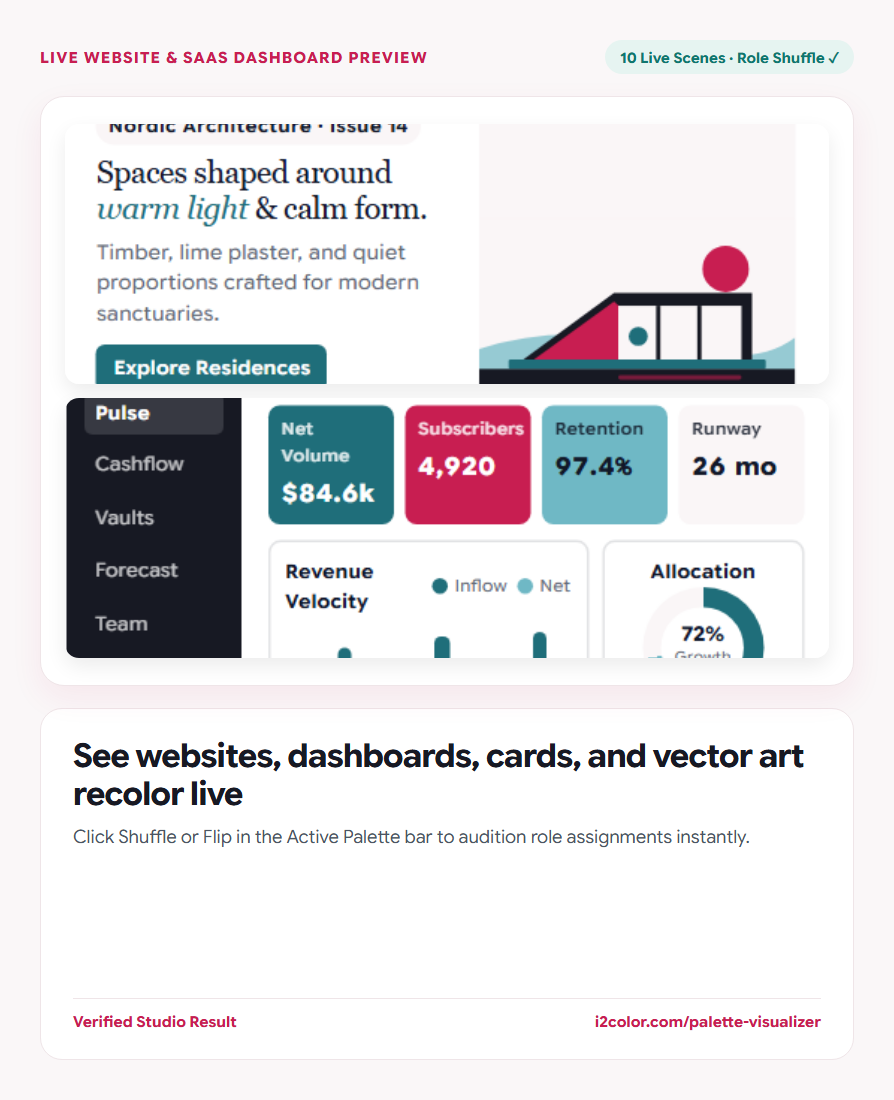
Every SVG illustration, KPI sparkline, and editorial spread updates instantaneously.
Editorial & SaaS Dashboards
Tests navigation bars, hero headlines, secondary cards, data badges, and primary CTAs.
Identity Cards & Packaging
Previews tactile foil/ink balance across front-and-back business cards and retail boxes.
Seamless Patterns & Vector Scenes
Recolors botanical prints, geometric tapestries, and architectural illustrations mathematically.
Download presentation mockups or Brand Guidelines
Export any board from the Lightbox as a clean PNG for client decks, or click the PDF icon in the Paintbox bar to download a 1-page vector Brand Color Guidelines sheet.
/* Verified 60-30-10 Visualizer Role Mapping */
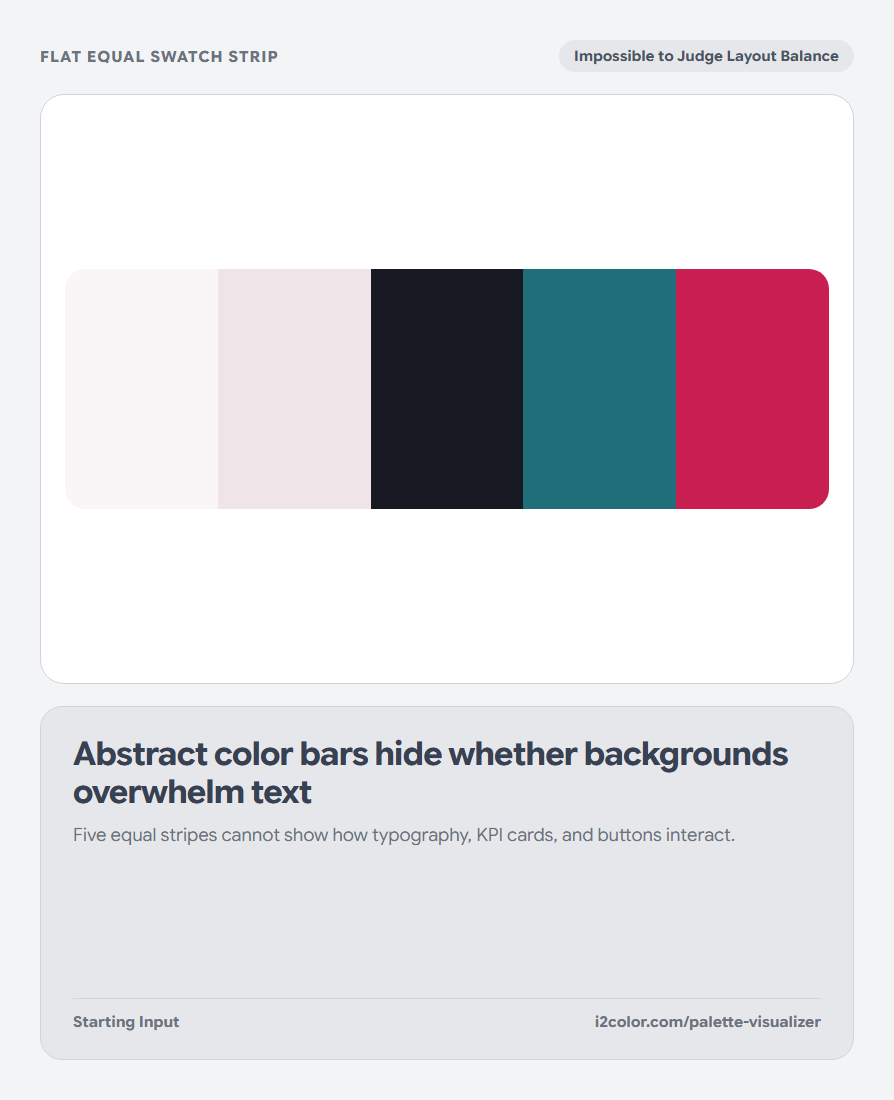
--role-canvas-60:   #FAF6F7; /* Page & App Background */
--role-surface-20:  #EFE5E8; /* Elevated Cards        */
--role-ink-10:      #171923; /* Headlines & Body Copy */
--role-accent-a-5:  #C81E51; /* Primary CTA Buttons   */
--role-accent-b-5: #1F6E7A; /* Charts & Badges */Common questions
Can I edit just one swatch while looking at the Visualizer?
Yes. Click any swatch tile in the Active Palette bar to open the inline picker and watch all 10 boards update live as you drag.
Does Undo work if I shuffle past a combination I liked?
Yes. Click Undo in the Active Palette bar (or press Ctrl+Z) to step back through previous role shuffles and edits.
Are the vector illustrations raster bitmaps?
No—every pattern, packaging mockup, and illustration is a pure scalable vector scene recolored dynamically from your palette roles.
Try Palette Visualizer
Test your colors across 10 live web, dashboard, brand, and illustration scenes.