
Open Recolor Image to Palette in your browser to transfer your multi-color Active Palette onto any photo in perceptual OKLab space while keeping crisp luminance detail, natural skin gradients, and sharpness. Everything runs locally on your device with instant sync across the shared Active Palette bar.
Load a photo and pick or shuffle your Active Palette
Upload any photo (`PNG`, `JPG`, `WebP`, `AVIF`, `GIF`, `SVG`, `BMP`, `ICO`, or `TIFF`) and make sure your brand swatches are loaded in the Active Palette bar above the stage.
Click Shuffle or Flip in the Active Palette bar anytime to audition completely different studio grades live.
Include light & dark anchors: Palettes that contain one light neutral and one deep shadow swatch produce the most natural photographic dynamic range.
Dial in Strength and Preserve Detail
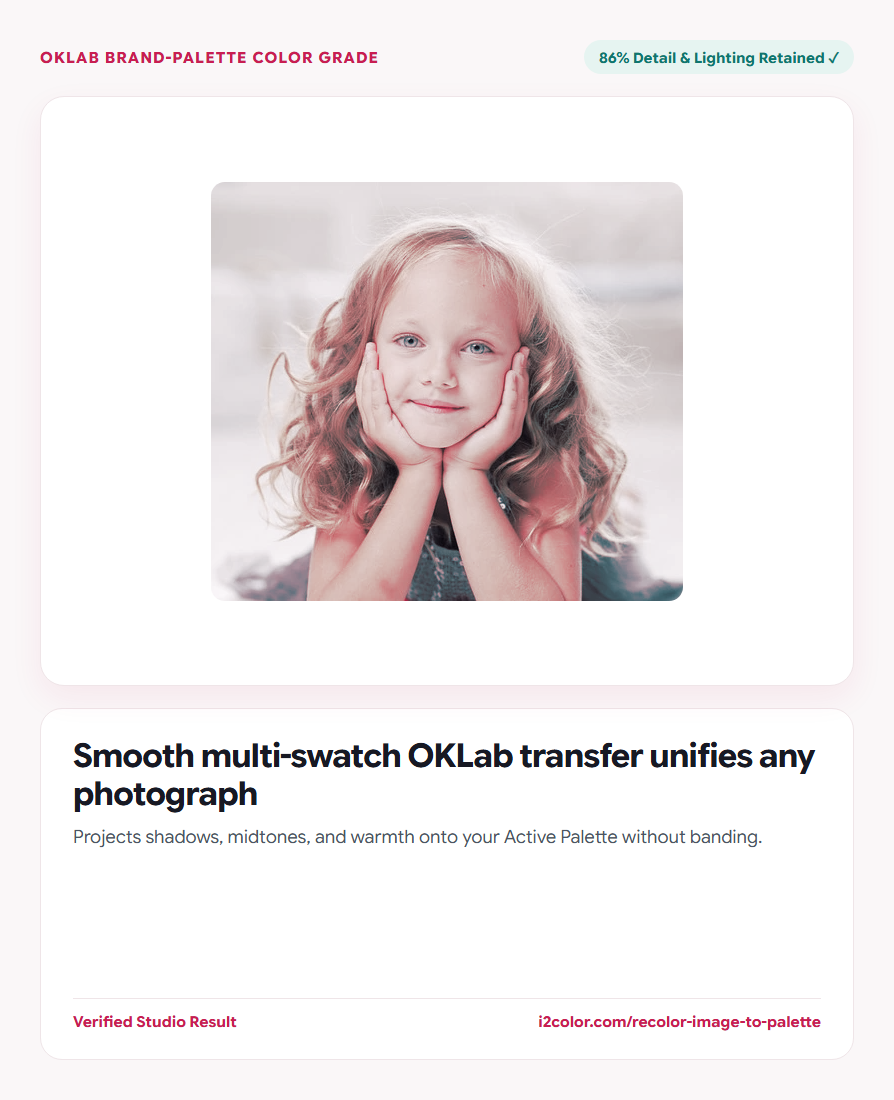
Use Strength (`70%–85%` for editorial subtlety, `100%` for stylized poster harmony) to control how strongly pixel chroma pulls toward your palette.
Keep Preserve Detail around `80%–90%` so original OKLab lightness (`L`) retains crisp eyelashes, textures, and natural lighting.
Editorial Subtlety (65–80%)
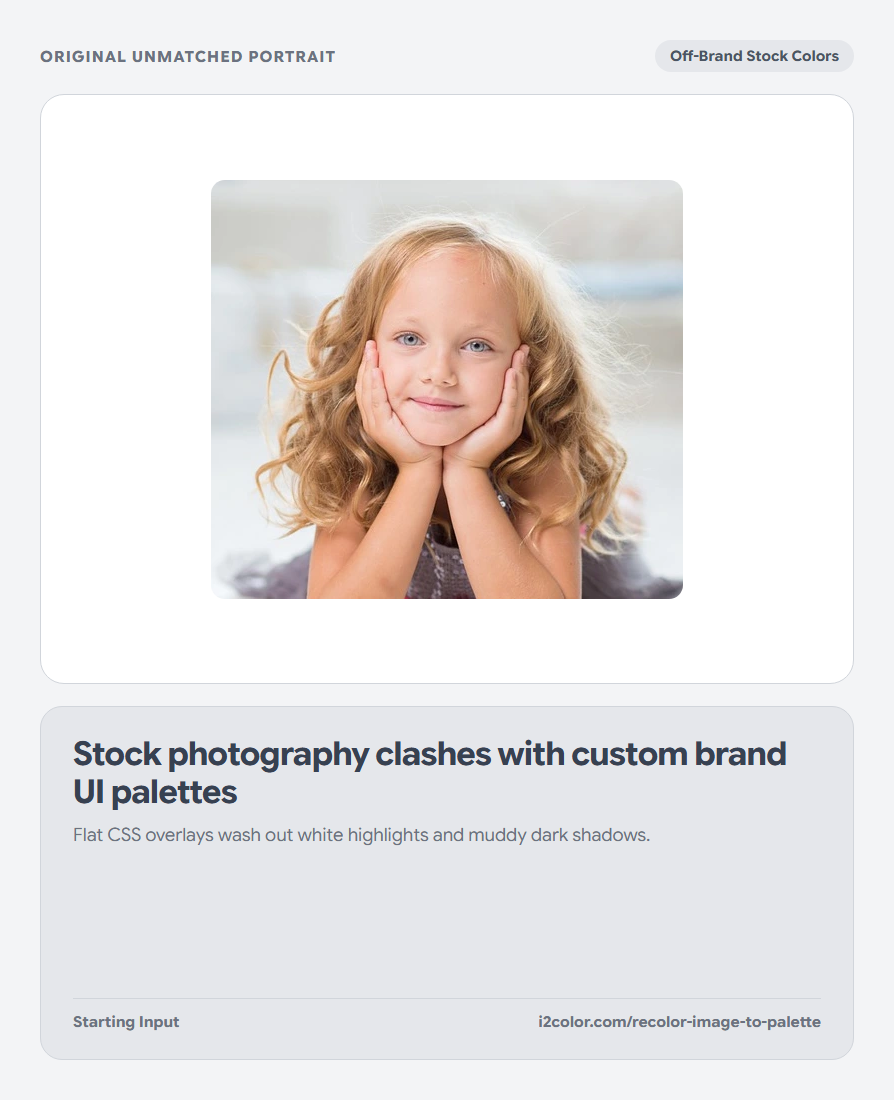
Nudges off-brand stock photography gently into family with your website’s surface and accent hues.
Stylized Campaign (90–100%)
Creates bold, unmistakable brand-colored campaign banners and album/podcast art.
Interactive Before/After Split
Drag the vertical split handle across faces and highlights to confirm zero posterization.
Export your brand-graded PNG
Click Download PNG to save the graded image locally with zero JPEG compression artifacts.
/* OKLab Multi-Swatch Projection Settings */
Active Swatches: #FAF6F7, #EFE5E8, #171923, #1F6E7A, #C81E51
Grade Strength:  72%  (Smooth Inverse-Distance Weighting)
Preserve Detail: 86% (Original OKLab Luminance Retained)Common questions
Why doesn’t OKLab palette grading cause hard posterized bands?
Instead of snapping each pixel to its single nearest swatch, every pixel blends smoothly across all palette swatches using squared inverse-distance weights in OKLab.
Does transparent PNG alpha remain transparent?
Yes—any pixel with alpha 0 stays 100% transparent, and semi-transparent edges retain their exact alpha channel.
Is there any server upload or watermark?
None. Processing is 100% local, instant, and watermark-free.
Try Recolor Image to Palette
Unify stock photography and hero visuals in perceptual OKLab without posterization.